> ## Documentation Index
> Fetch the complete documentation index at: https://kb.mochahost.com/llms.txt
> Use this file to discover all available pages before exploring further.
# How to enable automatic core, theme, and plugin updates on Mochahost Managed WordPress
> Learn how to enable automatic core, theme, and plugin updates for Mochahost Managed WordPress.
To enable automatic updates of your WordPress core, themes, and plugins, follow these steps:
1. Log in to the Hosting Panel at [https://clients.mochahost.com](https://clients.mochahost.com)
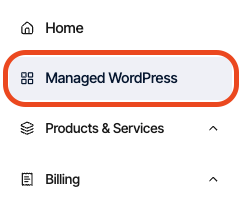
2. In the left sidebar, click **Managed WordPress:**
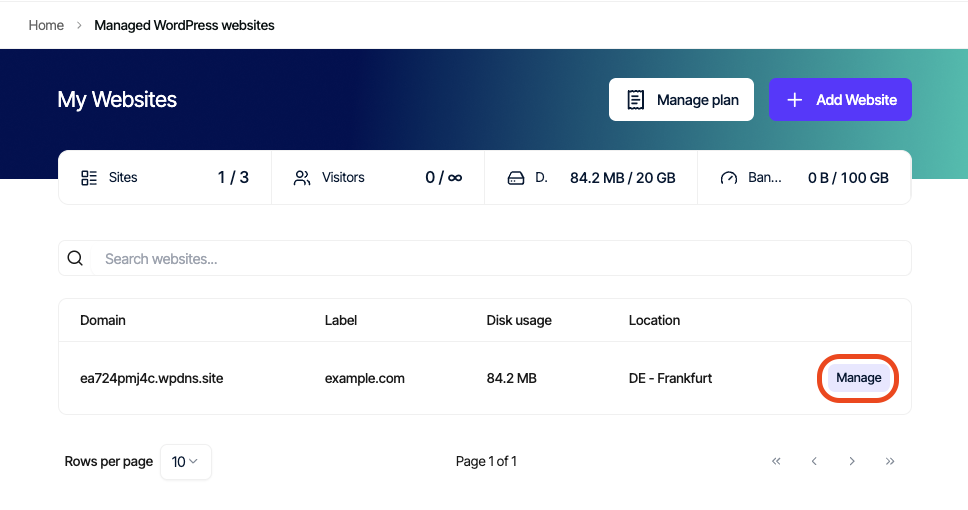
3. On the **My Websites** page, locate the site, and then click **Manage**:
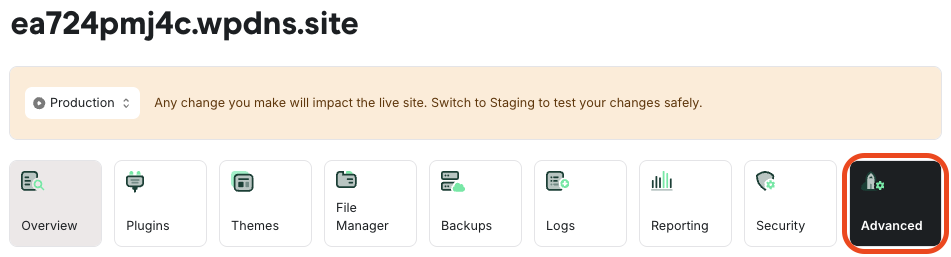
4. On the Mochahost dashboard, click the **Advanced** icon:
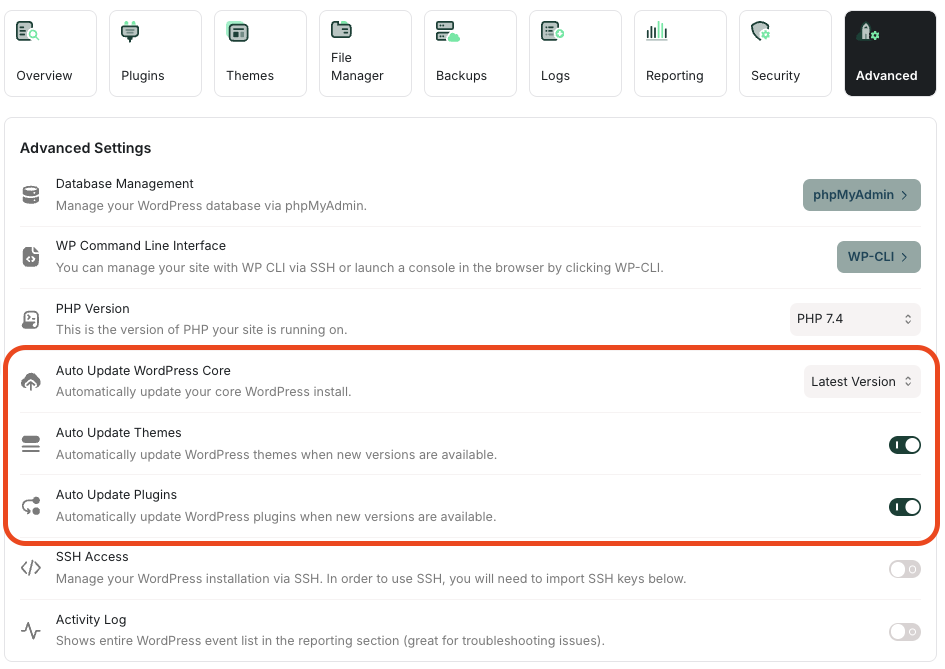
5. In the **Advanced Settings** section, select the options you want:
* To enable automatic updates for WordPress core, in the **Auto Update WordPress Core** section select the version you want.
* To enable automatic updates for WordPress themes, click the **Auto Update Themes slider**.
* To enable automatic updates for WordPress plugins, click the **Auto Update Plugins slider.**
Tip
If you want to update your themes and plugins manually, leave these options disabled. Instead, go to the **Plugins** or **Themes** pages in the Mochahost Dashboard, where you’ll find an option on the right side of the page to do a manual update.