> ## Documentation Index
> Fetch the complete documentation index at: https://kb.mochahost.com/llms.txt
> Use this file to discover all available pages before exploring further.
# How to manage your databases with phpMyAdmin on Mochahost Managed WordPress
> Learn how to manage your WordPress databases from the Mochahost Dashboard.
While managing your WordPress sites hosted on Mochahost Managed WordPress, you may need to edit the databases directly. You can do this easily from the Mochahost Dashboard using phpMyAdmin.
Important
Before you edit a database directly, we strongly recommend creating a backup of it first. For information about how to do this, go to [How to back up and restore a database on Mochahost Managed WordPress]().
To access phpMyAdmin and your databases from the Mochahost Dashboard, follow these steps:
1. Log in to the Hosting Panel at [https://clients.mochahost.com](https://clients.mochahost.com).
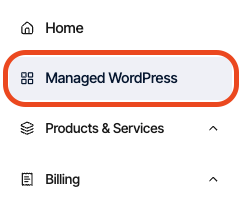
2. In the left sidebar, click **Managed WordPress:**
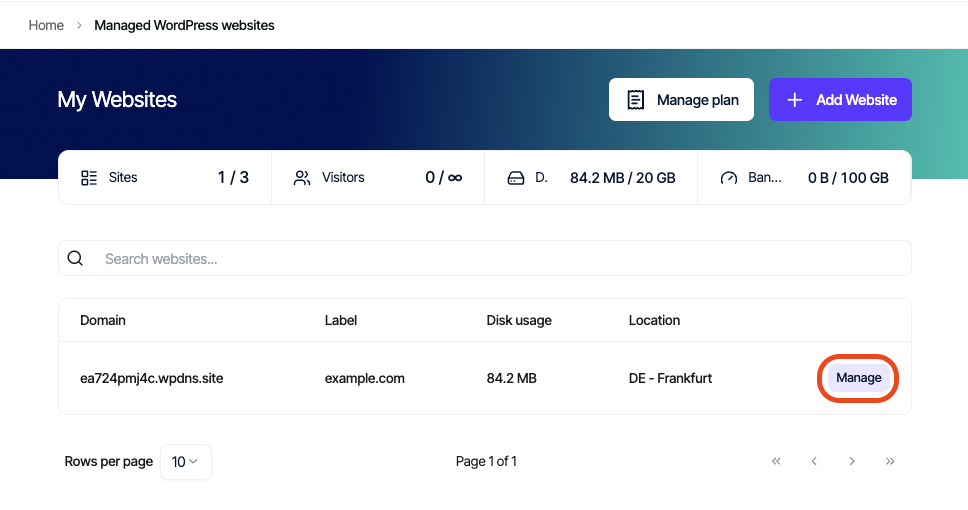
3. On the **My Websites** page, locate the site, and then click **Manage**:
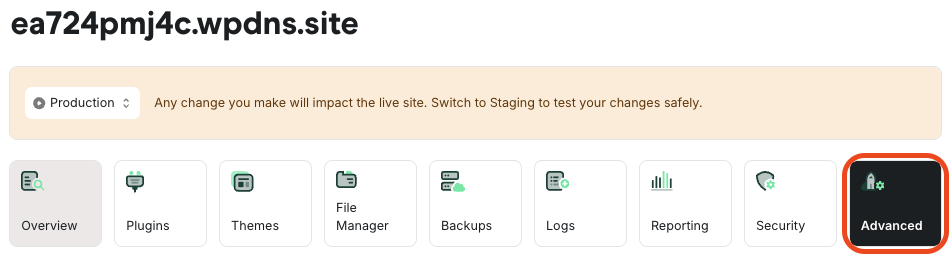
4. On the Mochahost dashboard, click the **Advanced** icon:
5. In the **Advanced Settings** section, in the **Database Management** row, click **phpMyAdmin**:
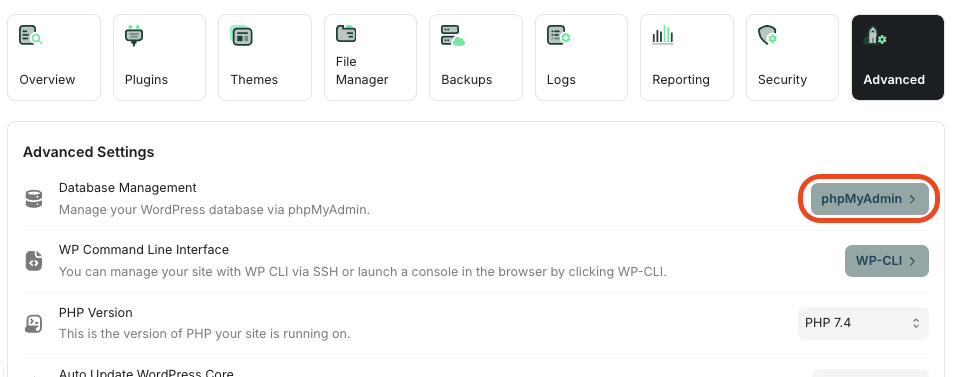
phpMyAdmin opens in a new tab.
Tip
For information about how to use phpMyAdmin, go to the official documentation at [https://docs.phpmyadmin.net/en/latest/](https://docs.phpmyadmin.net/en/latest/).