> ## Documentation Index
> Fetch the complete documentation index at: https://kb.mochahost.com/llms.txt
> Use this file to discover all available pages before exploring further.
# How to update, activate, and deactivate themes on Mochahost Managed WordPress
> Learn how to update, activate, and deactivate themes on Mochahost Managed WordPress hosting plans.
You typically update, activate, and deactivate installed themes on your WordPress site from the WordPress Admin area. But you can also achieve this from the Mochahost Dashboard.
To do this, follow these steps:
1. Log in to the Hosting Panel at [https://clients.mochahost.com](https://clients.mochahost.com)
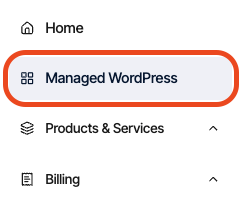
2. In the left sidebar, click **Managed WordPress**:
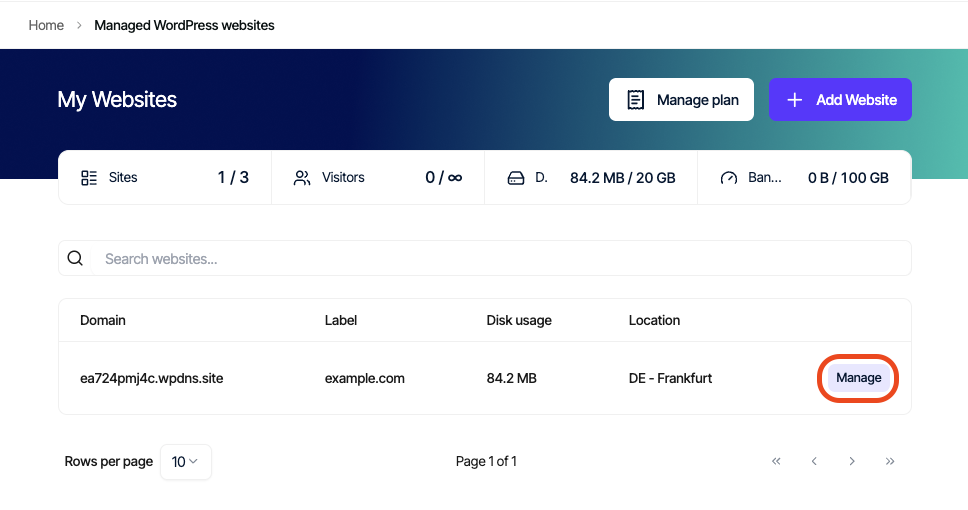
3. On the **My Websites** page, locate the site, and then click **Manage**:
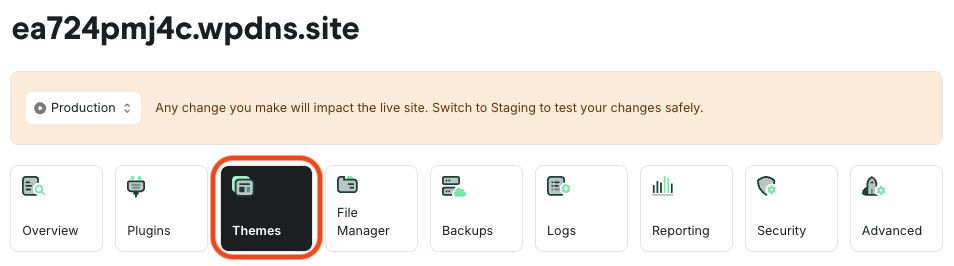
4. On the Mochahost dashboard, click the **Themes** icon:
5. A list of all installed themes appears, showing each theme’s name, description, version, status, and available actions:
* **To activate a theme**: Click **Activate** on the right side of the theme row.
* **To deactivate the active theme**: First activate a different theme (WordPress always requires one active theme).
* **If an update is available**: An **Update** option will appear in the Actions column.