

Tip
- Before you use WP-CLI, please read the release announcement at the Rocket.net blog for an overview and some basic information about how to use it.
- You can also run WP-CLI directly from the Mochahost Dashboard without having to set up SSH. For information about how to do this, go to Using WP-CLI in the Mochahost Dashboard.
Step 1: Generate an SSH key pair
To access WP-CLI from the command line, you must first create an SSH key pair for your account. To do this, follow these steps:- Open your system’s terminal or command-line tool:
- Microsoft Windows: Use Command Prompt or PowerShell.
- Apple macOS and Linux: Use Terminal.
- At the command prompt, type the following command:
ssh-keygen -t rsa - When prompted: i. Press Enter to accept the default location (usually ~/.ssh/id_rsa or similar). ii. Leave the passphrase empty.
- After the key pair is generated, to view and copy your public key type:
more .ssh/id_rsa.pub
You will need the public key in the next procedure.
Step 2: Add the public key in the Mochahost Dashboard
To add your public key in the Mochahost Dashboard, follow these steps:- Log in to the Hosting Panel at https://clients.mochahost.com.
-
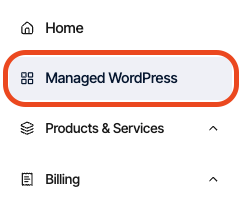
In the left sidebar, click Managed WordPress:
-
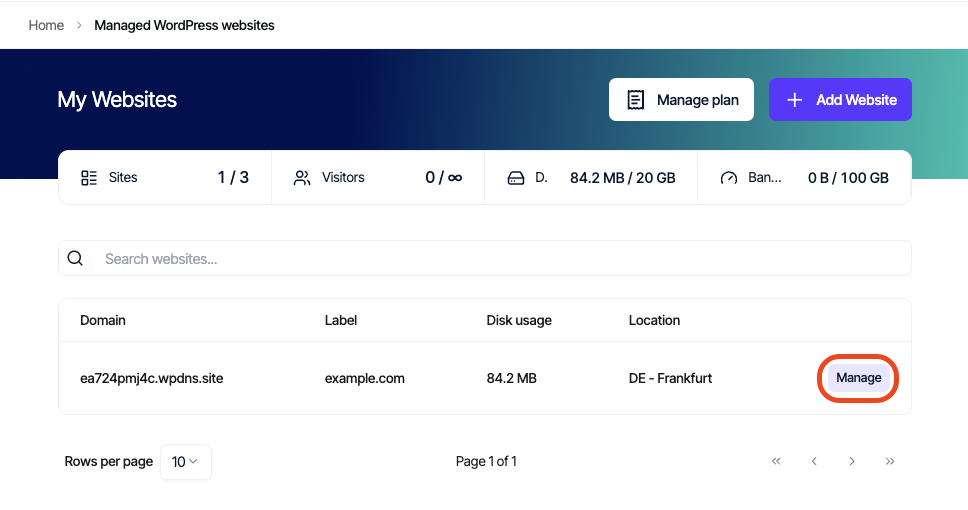
On the My Websites page, locate the site for which you want to enable SSH, and then click Manage:
-
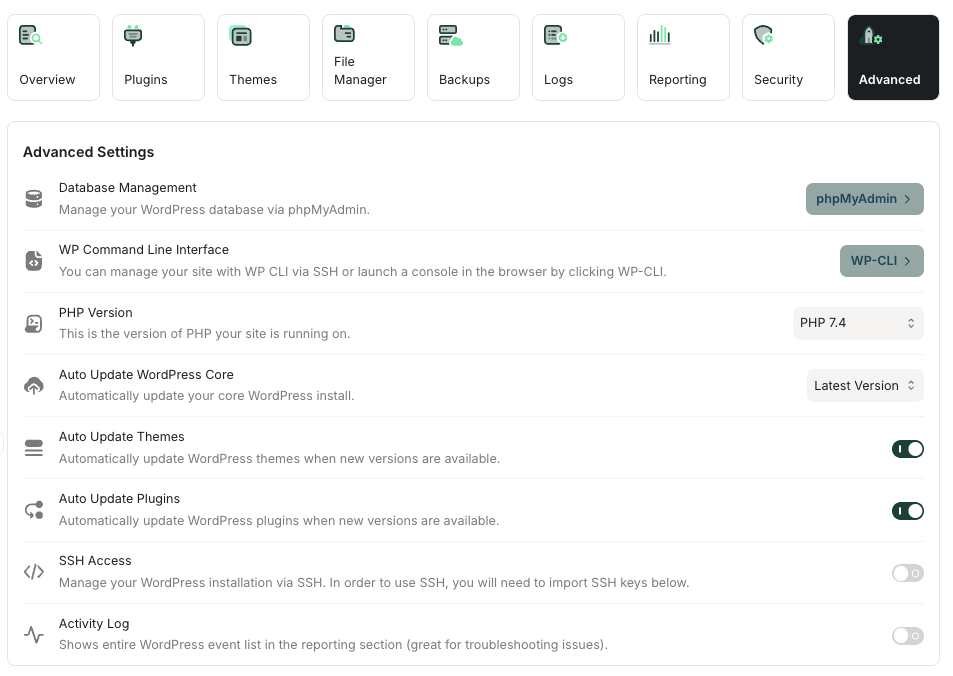
On the Mochahost dashboard, click the Advanced icon:
-
In the Advanced Settings section, click the SSH Access slider if it is not already enabled:

-
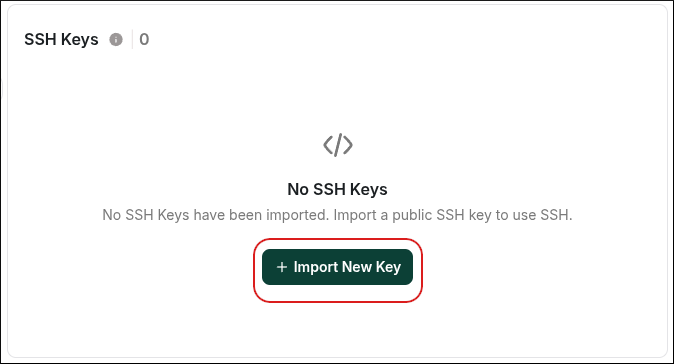
Scroll down to the SSH Keys section, and then click Import New Key:
-
In the Import New Key dialog box: In the Key Name text box, type a descriptive name for the key.
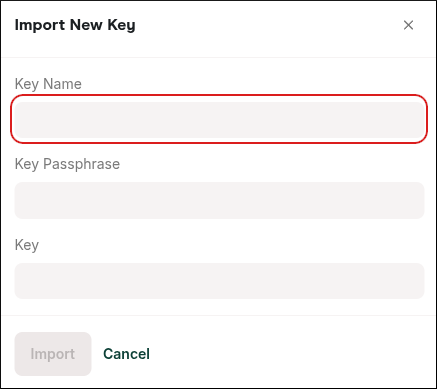
- In the Key Passphrase text box, type the passphrase for the key. If you did not create a key passphrase, leave it blank.
- In the Key text box, paste the public key.
- Click Import.
- After importing the key, activate it by clicking the checkmark next to it so it is allowed to access SSH.
Step 3: Connect to the server and run WP-CLI
You’re ready to connect to the server and run WP-CLI. To do this, you need your SSH username and server IP address.Tip
You can find the SSH username and server IP address on the General tab in the Site Information section, just above the FTP Accounts section.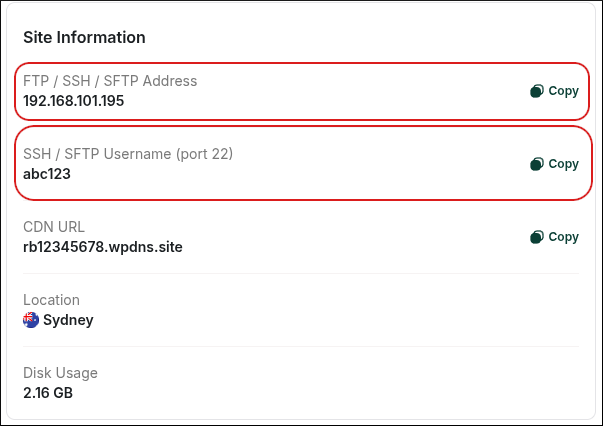
ssh sshusername@IPaddress
Note
If this is your first time connecting, you may receive a warning message. Type
y and press Enter.cd public_html
You can now run WP-CLI commands. For example, you can purge the cache:wp cache flush
You can purge the CDN cache:wp cdn purge
You can view your current domain:wp option get home
Tip
For more information about WP-CLI and its various commands, go to the WP CLI documentation.