

Installing plugins
To install a WordPress plugin using the Mochahost Dashboard, follow these steps:- Log in to the Hosting Panel at https://clients.mochahost.com
-
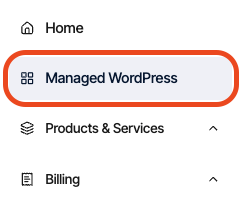
In the left sidebar, click Managed WordPress:
-
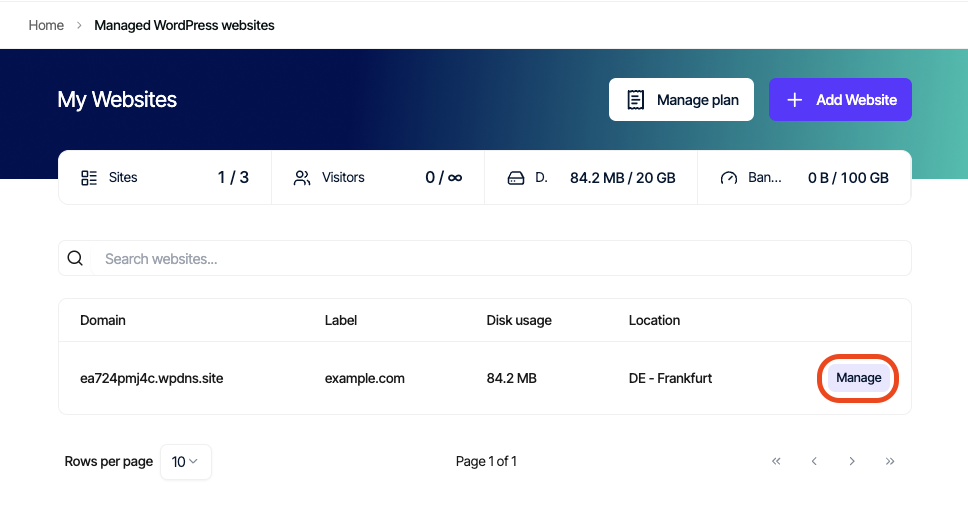
On the My Websites page, locate the site, and then click Manage:
-
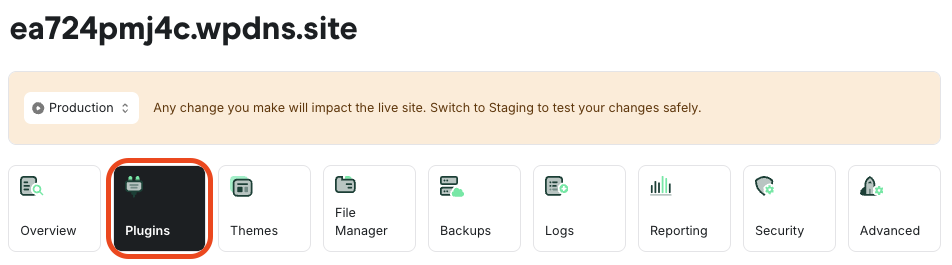
On the Mochahost dashboard, click the Plugins icon:
-
Click the Discover Plugins tab:
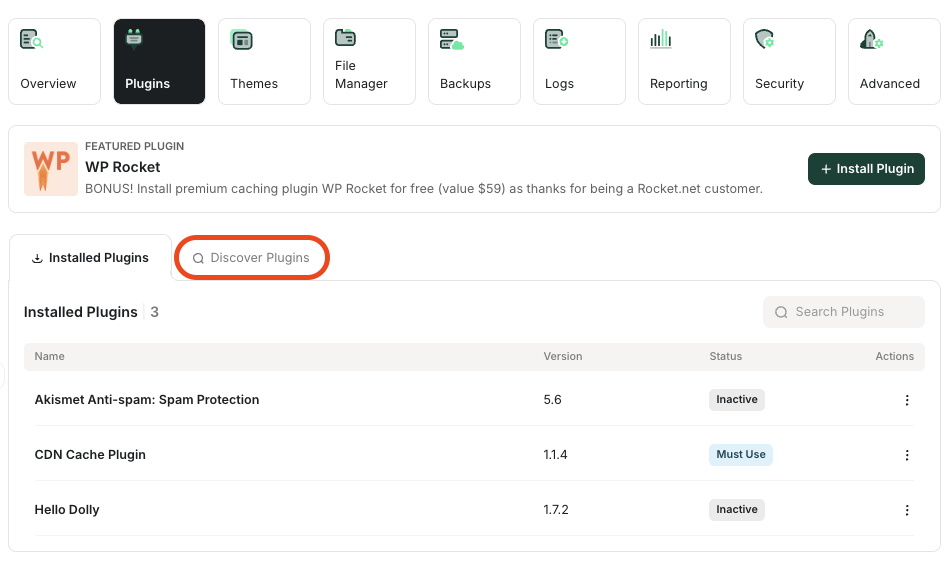
- In the Search Plugins text box, type the name or functionality of the plugin you want to install.
- In the search results, locate the plugin you want to install, and then click Install. The plugin now appears on the Installed Plugins tab.
Managing installed plugins
You can activate, deactivate, update, and delete your installed plugins. To do this, follow these steps:- Log in to the Hosting Panel at https://clients.mochahost.com
-
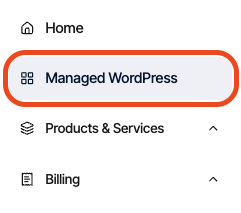
In the left sidebar, click Managed WordPress:
-
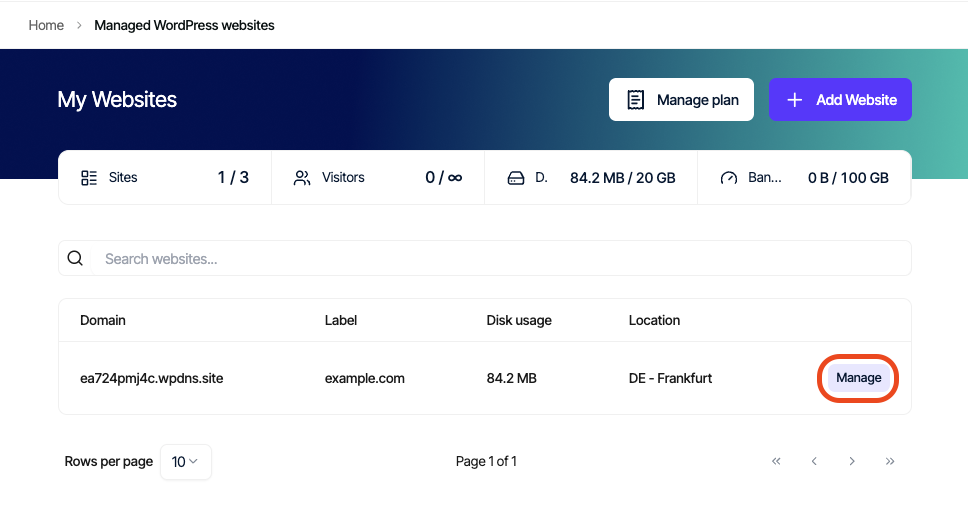
On the My Websites page, locate the site, and then click Manage:
-
On the Mochahost dashboard, click the Plugins icon:
-
On the Installed Plugins tab appears a list of your installed plugins. Choose one of the following actions:
- To deactivate an active plugin, in the Actions column, click the three-dot icon, and then click Deactivate.
- To activate a deactivated plugin, in the Actions column, click the three-dot icon, and then click Activate.
- To update a plugin, in the Actions column, click the three-dot icon, and then click Update.
- o delete a plugin, in the Actions column, click the three-dot icon, and then click Delete.