

Tip
Before you use WP-CLI, please read the release announcement at the Rocket.net blog for an overview and some basic information about how to use it.
Accessing WP-CLI
To access WP-CLI from the Mochahost Dashboard, follow these steps:- Log in to the Hosting Panel at https://clients.mochahost.com.
-
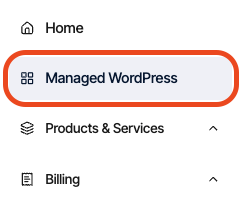
In the left sidebar, click Managed WordPress:
-
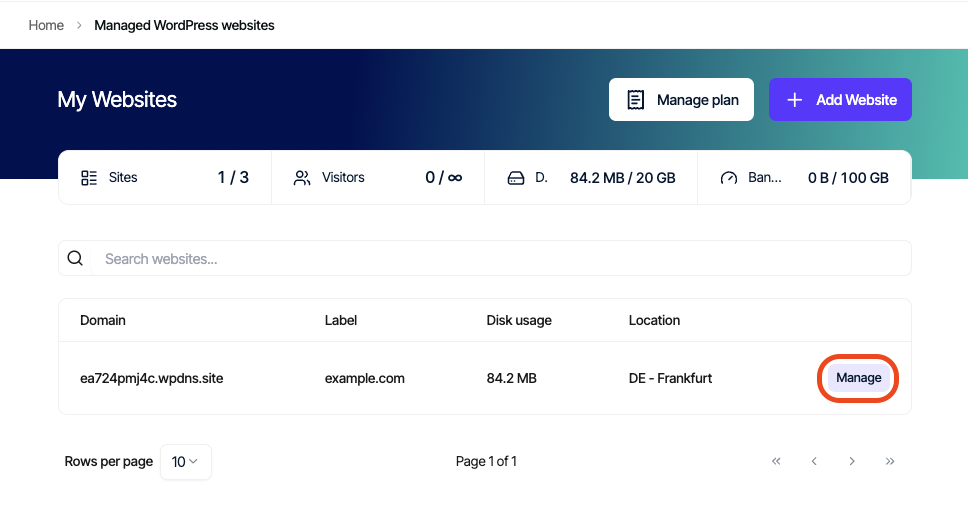
On the My Websites page, locate the site, and then click Manage:
-
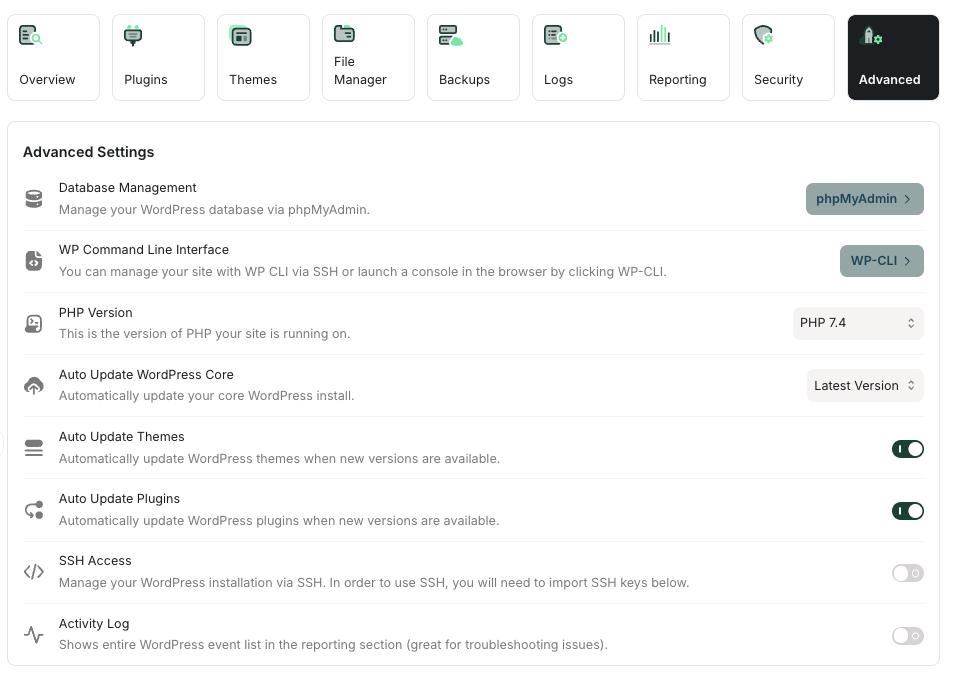
On the Mochahost dashboard, click the Advanced icon:
-
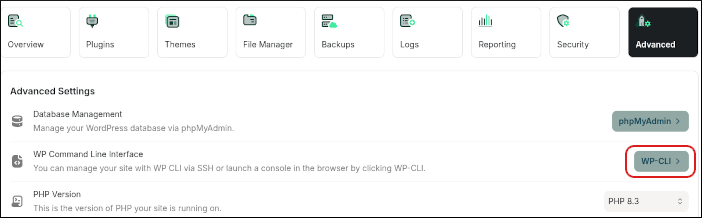
In the Advanced Settings section, in the WP Command Line Interface row, click WP-CLI:
-
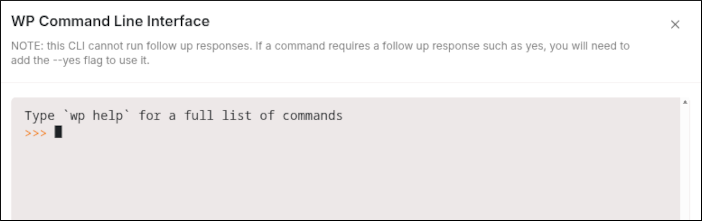
The WP-CLI terminal appears, ready for your commands:
Using WP-CLI
The WP-CLI Terminal is not the same as an SSH command prompt. The only command available is wp with another command called an “argument” after it. For example:wp theme list
wp plugin list
wp user list
The wp command invokes WP-CLI, and [item] list displays lists of each of those items.
One of the most powerful tools available in WP-CLI is the search-replace command, which allows you to search the database for any text and replace it.
For example, the following command changes references from an old domain name (example.net) to a new domain name (example.com):
wp search-replace ‘https://example.net’ ‘https://example.com’
Important
You should not use this command to change a site’s domain name. The example above refers to an arbitrary URL in the database.