

Method #1: Use the Mochahost Dashboard
To install a plugin using the MochaHost Dashboard, follow these steps:- Log in to the Hosting Panel at https://clients.mochahost.com/
-
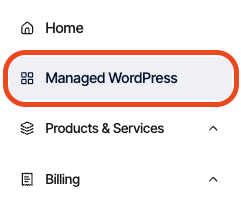
In the left sidebar, click Managed WordPress.
-
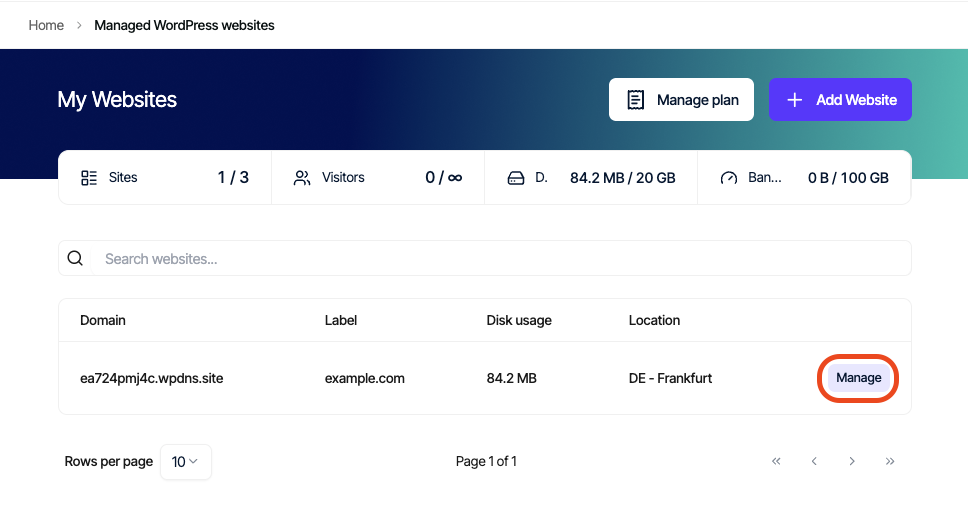
On the My Websites page, locate the site, and then click Manage.
-
On the MochaHost dashboard, click the Plugins icon.
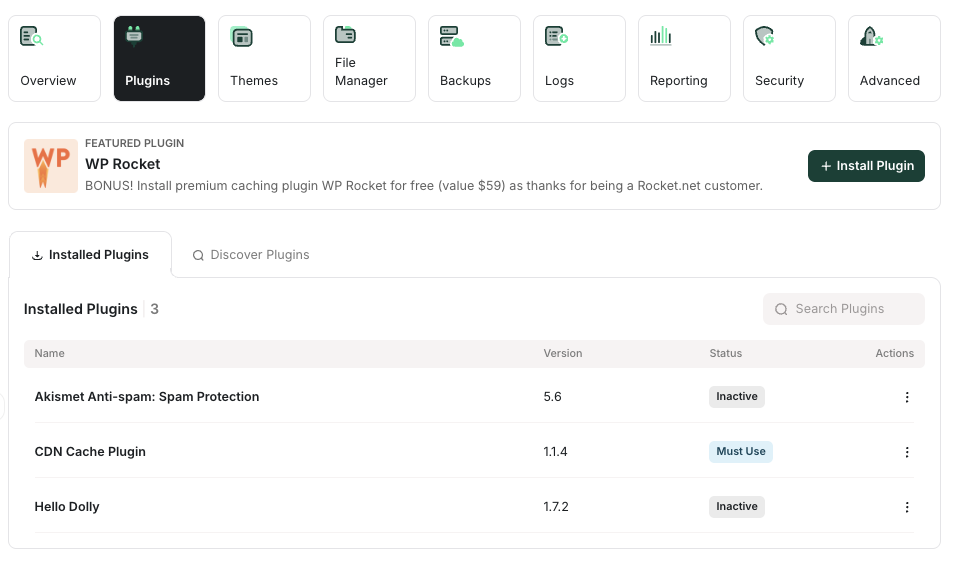
- Click the Discover Plugins tab.
- In the Search Plugins text box, type the name or functionality of the plugin you want to install.
- In the search results, locate the plugin you want to install, and then click Install.
Method #2: Use the WordPress admin interface
To install a plugin using the WordPress admin interface, follow these steps:- Log in to your WordPress site as the administrator.
- In the left-hand pane, click Plugins. A list of featured plugins in the WordPress Plugin Directory appears.
- To install a plugin, click Add New.
- In the Search text box, type the plugin name or functionality, and then click Search Plugins.
- In the Name column, locate the plugin, and then click Install Now.
- After WordPress finishes installing the plugin, click Activate Plugin.