

🚧 Important
- Before you can use Gmail as the e-mail provider for your domain, you must verify your domain with Google Workspace. For information about how to do this, please visit https://support.google.com/a/answer/60216.
- If you have users that already have e-mail accounts on your domain, you must create accounts for them in Google Workspace before you change the MX records. Otherwise, they will be unable to send or receive messages in Gmail. For information about how to create accounts in Google Workspace, please visit https://support.google.com/a/topic/14586.
Setting up Gmail as the e-mail provider in Plesk
To set up Gmail as the e-mail provider for your domain in Plesk, you delete the existing e-mail DNS records and then add new MX records that point to Google’s servers. To do this, follow these steps:- Log in to Plesk.
-
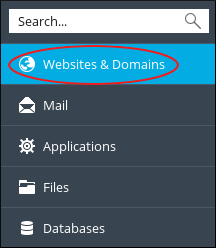
In the left sidebar, click Websites & Domains:
-
Click DNS Settings:

-
In the list of DNS records, select the check boxes for the following records. Replace example.com with your own domain name:
- example.com (MX 10 record)
- mail. example.com (A record)
- webmail. example.com (A record)
- Click Remove, click Yes to confirm the deletion, and then click Update. Plesk removes the selected records.
- Click Add Record.
- In the Record type list box, select MX.
- Leave the Mail domain text box blank.
-
In the Mail exchange server text box, type
ASPMX.L.GOOGLE.COM. - In the Specify the priority of the mail exchange server list box, select very high (0).
- Click OK. Plesk creates the DNS record, but does not activate it.
-
Repeat steps 6 to 11 for the following mail servers. Each time, use the table to specify the next mail exchange server and its corresponding priority:
- Click Update. Plesk activates the new records.
-
In Google Workspace, activate Gmail:
- Log in to your Google Workspace account.
- Open the setup tool in the Admin console.
- In the Gmail section, click ACTIVATE, and then click CONTINUE.
- Scroll to the bottom of the page, and then click ACTIVATE GMAIL.
📘 Note It can take several hours for the switchover to Gmail to complete. During this transition period, you continue to receive messages at your existing e-mail accounts in Plesk.