

- Log in to the Hosting Panel at https://clients.mochahost.com
-
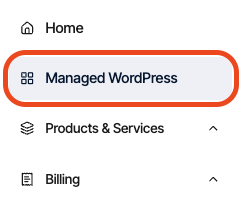
In the left sidebar, click Managed WordPress:
-
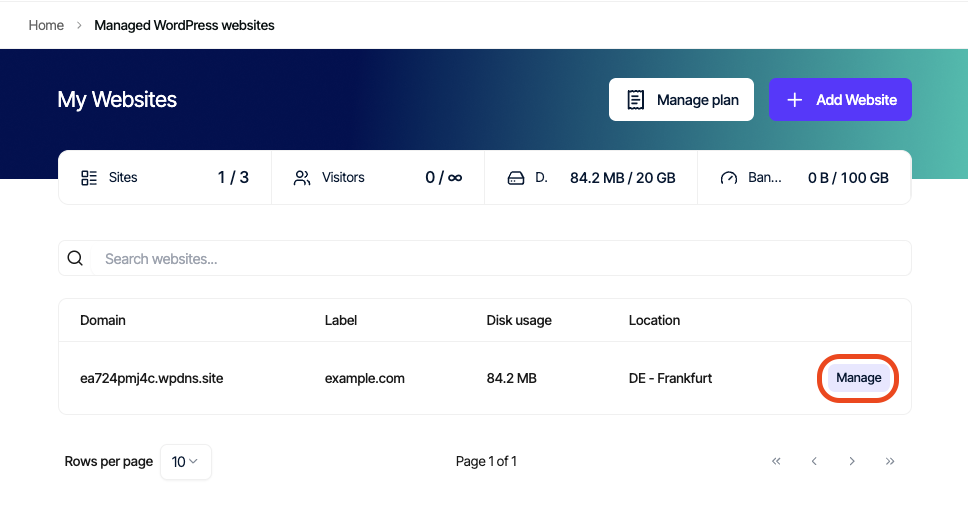
On the My Websites page, locate the site, and then click Manage:
-
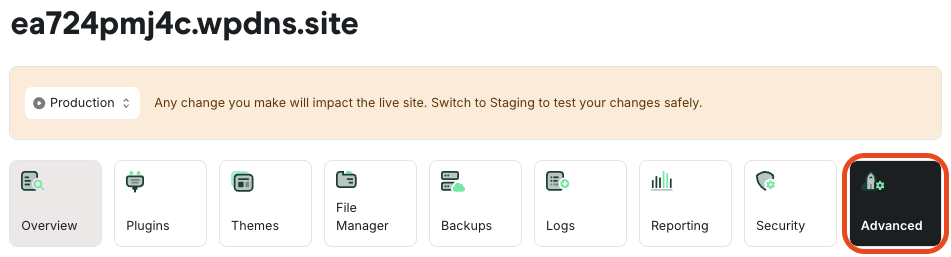
On the Mochahost dashboard, click the Advanced icon:
-
Scroll to the bottom of the page, and then click Delete Website:

- Confirm the deletion. The entire site, including backups, is removed from your account.
Managed hosting for WordPress powered by Rocket.net
How to remove a WordPress site from Mochahost Managed WordPress
Learn how to remove a WordPress site from a Mochahost Managed WordPress hosting plan.
You might have created an isolated WordPress installation to test a new style, plugin, or experiment with, and now you’d like to remove it from your Mochahost Managed WordPress account. You can easily do this from the Mochahost Dashboard.
To delete a site, follow these steps:
Was this page helpful?