
- Log in to the Hosting Panel at https://clients.mochahost.com.
-
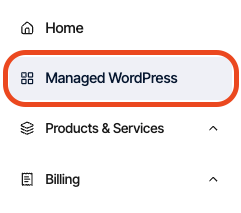
In the left sidebar, click Managed WordPress:
-
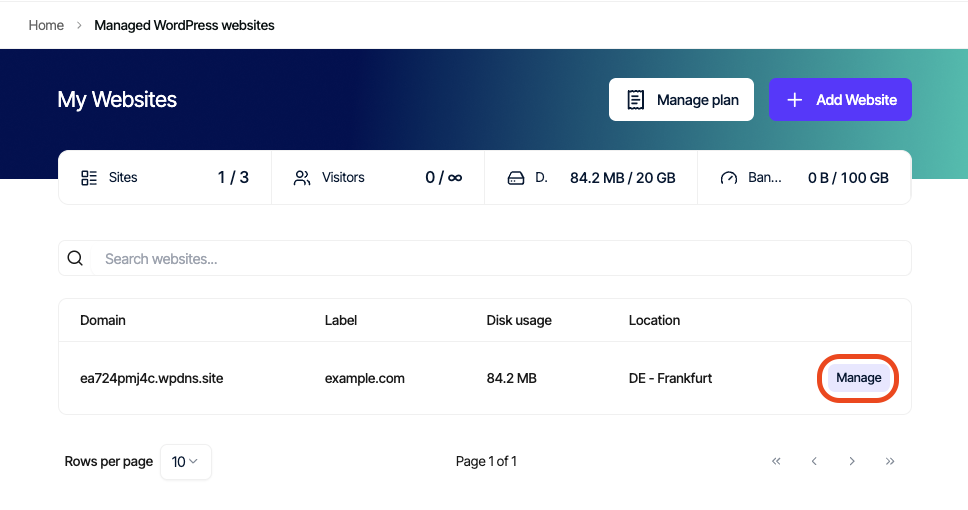
On the My Websites page, locate the site, and then click Manage:
-
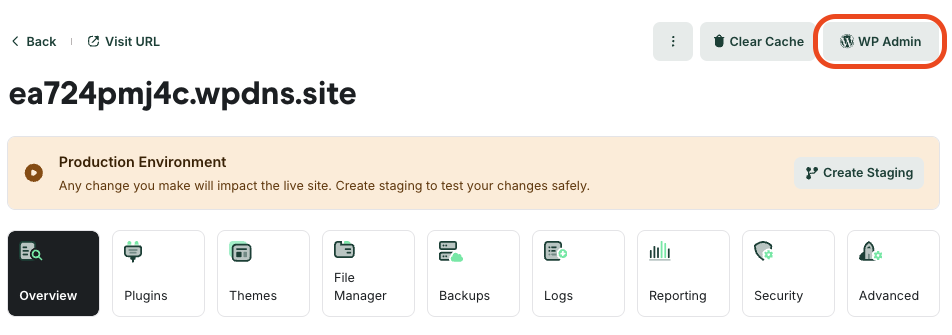
At the top right of the page, click WP Admin:
- On the WordPress dashboard, in the left sidebar, click Settings, and then click General.
- In the Site Language list box, select the language you want to use for your WordPress installation.
- Scroll to the bottom of the page, and then click Save Changes. Your WordPress installation is now in the language that you selected.
Managed hosting for WordPress powered by Rocket.net
Changing the WordPress language on Mochahost Managed WordPress
Learn how to change the WordPress language on Mochahost Managed WordPress.
When you create a new site on Mochahost Managed WordPress, you may have noticed that English is the only language available on our installer.
We have plans to add more languages by default in the installer. For now, you can easily change the WordPress language after installation.
To do this, follow these steps:
Was this page helpful?