

About Let’s Encrypt
Let’s Encrypt is a free, automated, and open certificate authority (CA) from the Internet Security Research Group (ISRG). It enables anyone to install a free, trusted SSL certificate on their website and benefit from the enhanced security an encrypted connection provides. Unlike a self-signed SSL certificate, which is also free and secure but not verified, a Let’s Encrypt certificate is recognized as fully verified, and displays the padlock icon in the address bar of modern web browsers.Plesk provides a plugin that enables you to manage Let’s Encrypt SSL certificates. Important- The domain name for which you want to install a Let’s Encrypt SSL certificate must resolve in a web browser (even if the site has no content). You cannot obtain a Let’s Encrypt certificate for a domain name that does not pass validation.
Installing a Let’s Encrypt SSL certificate on your domain
To install a Let’s Encrypt SSL certificate on your domain, follow these steps:- Log in to Plesk.
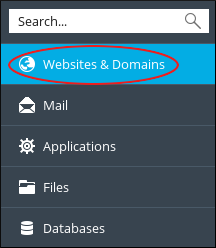
- In the left sidebar, click Websites & Domains:
- Click the Let’s Encrypt icon:

The Let’s Encrypt SSL Certificate page appears:
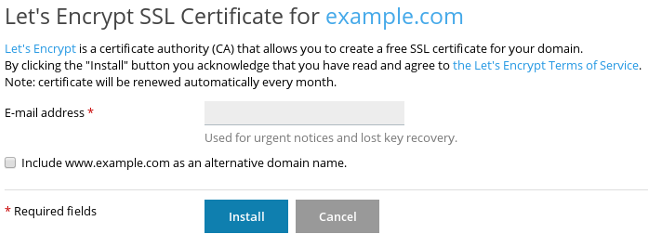
- In the E-mail address text box, type a valid e-mail address.
- Select the Includewww.example.com as an alternative domain name check box if you want the SSL certificate to protect your domain with and without the www prefix.
- Click Install. When installation is complete, you receive a Let’s Encrypt SSL certificate was successfully installed onexample.com message.
- Is spelled correctly.
- Is registered and active.
- Resolves in a web browser.
- In the left sidebar, click Websites & Domains:
- Click Hosting Settings.
- Under Security, confirm the SSL support check box is selected, and the Let’s Encrypt SSL certificate is selected in the Certificate list box.
Renewing a Let’s Encrypt SSL certificate for your domain
Plesk automatically renews Let’s Encrypt certificates, with no action necessary on your part.By default, Let’s Encrypt SSL certificates are valid for 90 days. However, Plesk automatically renews certificates once a month, as recommended by the Let’s Encrypt developers. The shorter renewal period helps ensure your site’s security, and is completely transparent to you and your site’s visitors. Additionally, if a renewal attempt fails for any reason, you have sufficient time to troubleshoot the problem before the certificate expires.If you need to renew a certificate manually for some reason, follow these steps:- Log in to Plesk.
- In the left sidebar, click Websites & Domains:
- Click the Let’s Encrypt icon:
- Click Renew.